Looking for Technical Support?
If you are an existing customer experiencing technical issues, software bugs, need troubleshooting assistance, or would like to submit a feature request, follow the instructions below to submit a support ticket through Wirecast or please visit our dedicated support center. The contact form on this page is strictly for sales and general inquiries.
The Wirecast Workflow
A high-level overview of how audio, video, and network sources flow through your hardware, into Wirecast, and out to your audience.
Audio/Video Sources
- Cameras: SD/HD SDI, HDMI, USB, USB-C, and Thunderbolt
- iOS / Wirecast Go
- Microphones: USB, Line In, XLR
- Audio interfaces, mixers, and ASIO devices
- Web streams: RTMP, RTSP, MMS, HTTP
- Screen Capture and Remote Desktop Presenters
- IP Cameras & Web Display
- NDI™ Integration
- PTZ control (VISCA)
- System Audio Capture & Media Files
Hardware Capture
- Mac (Apple Silicon & Intel)
- Windows PC
- Wirecast Gear (Win10)
- Note: Quad-core processor recommended.
- PCIe, Thunderbolt, USB 3.0/3.1
- AJA
- Blackmagic Design
- Magewell and more…
Encoding
- X264, H.264
- RTMP, SRT
- ProRes, MJPEG
- AAC, and WMV
- Intel QuickSync
- nVidia NVENC
- Apple H.264
Destinations
- YouTube, Facebook, X (formerly Twitter), and more
- CDNs & Streaming servers
- Record to disk via ISO Recording
- Virtual camera and microphone out
- HD-SDI output
- Multi-viewer
- Live program out via hardware
- NDI output (Pro feature)
- Secondary Live Display ouput
Detailed Technical Specifications & System Scaling
Supported Operating Systems
Hardware Capability Baseline
Network Stack & Best Practices
Bandwidth Baseline: Total bitrate needed x 2 = Required upload bandwidth. Upload speed can be tested at websites such as TestMy.net/upload.
Ensure these network ports are open for traffic:
- 53 (DNS), 80 (HTTP/HTTPS), 443 (SSL)
- 1935 (RTMP), 2935 (RTMPS)
- 3478 / 5349 (STUN/Rendezvous peer-to-peer)
- 5353 (mDNS for local NDI source discovery)
- 5960-59xx (NDI port range, 1 port per active source)
- 7272 (Remote Desktop Presenter)
- 49152-65535 (WebRTC Media/Rendezvous – selected dynamically)
- Intel Quick Sync Video: Requires an Intel CPU with an active Intel® QuickSync Video core.
- NVIDIA NVENC: Requires a dedicated NVidia GPU featuring Kepler architecture or newer.
- Apple Hardware H.264: Natively utilizes modern Apple Silicon unified pipelines or designated Mac processing arrays.
Rendezvous utilizes WebRTC streams which scale system compute targets. Based on single simultaneous 720p30 streams @ 4.0Mbps:
- Studio (2 Guests): Allocate +4 Mbps bandwidth | i5 quad-core CPU baseline.
- Pro (7 Guests): Allocate +5+ Mbps bandwidth | i7 quad-core CPU baseline.
High Frame-Rate (60fps) & CPU Stack: Maintained system CPU usage exceeding 60% increases dropped frame likelihood. Consider lowering target canvas resolutions if resource saturation occurs.
Supported Languages
Wirecast interface controls, menus, and production toolkits are fully unlocked and available across 12 distinct localized languages:
 English
 Brazilian Portuguese
 Simplified Chinese
 Czech
Czech
 French
 German
 Italian
 Japanese
 Korean
 Dutch
Dutch
 Spanish
 Swedish
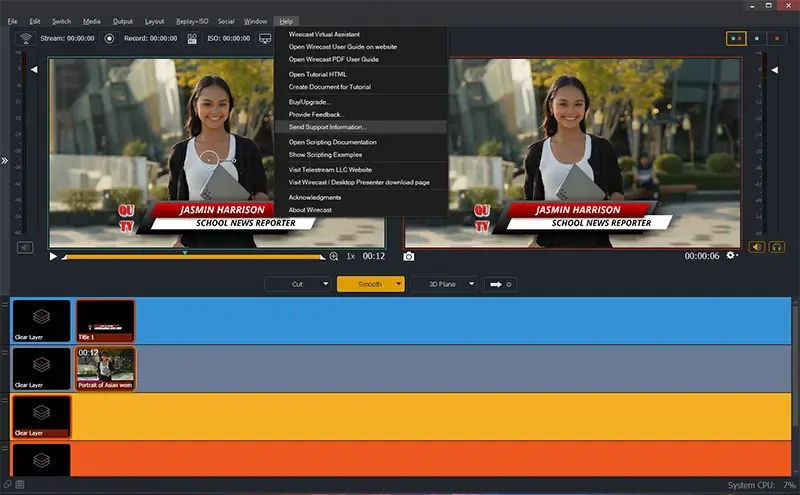
You can also access support links and materials directly from the Wirecast app under the Help menu. Under the Help menu, click “Send Support Information” and complete the form.
Get in Touch with the Wirecast Sales Team
Whether you’re looking for the right live video production software for your team, have questions about our plans, or need a custom quote, our sales team is here to help.
Contact Sales
Please fill out the form below to connect with our sales team.
Frequently Asked Questions
Save time by checking our most common inquiries below.
You can renew your license by visiting the upgrade page.
System CPU usage should remain below 70% while streaming.
- Disable “Live GPU Accelerated Icons” under the Shot Display tab of the Wirecast Preferences.
- Set your Wirecast document canvas size to 1280×720.
- Select a lower resolution encoding preset (i.e. 1280×720) in your Wirecast output destinations.
If you are experiencing a crash in Wirecast, we recommend submitting your support logs to support through Support Assistant (Wirecast > Help menu > Send Support information > Send report).
This will help gather information that the engineers can use to diagnose problems that may arise.
Use our “License Reset Tool” where you have 24/7 access to reset your own license key.
You can run your desktop product on one (1) computer at a time, per our software End User Licensing Agreement (EULA). If you have purchased multiple quantities of the product, you are authorized to install the software on that number of computers.
To activate your single license on a second computer you must first deactivate the license on the original machine and install and activate the license on your second system.